
There are basically three major components of a post in WordPress – The title, the content and the featured image. It’s quite obvious why title and content are important for a post but what about the featured image?
Well, it is the first thing that gains user’s attention. A featured image also known as thumbnails enables developers to add an image which represents a post, page or custom post type. A featured image is shown next to your post title as well as included on various social networks.
Multiple Post Thumbnails/Featured Images in WordPress
Why you need a featured image?
- Thumbnails are a great way to improve the visual aspect of your website
- A thumbnail can be easily separated from the rest of the images used in the post
- It also helps in optimizing the website for search engines.
Here are some of the places where a featured image is displayed:
Web users tend to scan your website content through the images you have used. Therefore, adding a good featured image is always a bright idea to catch your user’s interest. In WordPress, adding a post image is as easy as 1, 2, 3. With a default option available at the bottom of right corner, you can set a featured image with few clicks.

A majority of WordPress themes offer built-in support for publishing featured images in a post. However, there are times when you need to add more than one image.

There are certain ways of adding it in your WordPress website. Today we are here to show you how to add multiple post thumbnail images in your post.
WP offers many useful plugins to enhance the functionality of your website, post thumbnails is no exception. You can easily find a variety of plugins online that can be easily integrated in your site to enhance its functionality.
One such plugin is Multiple Post Thumbnails.
Multiple Post Thumbnails is one of the best options available for those who want to add more than one featured image in their website. It offers an admin area where you can add more than one thumbnail with few clicks.
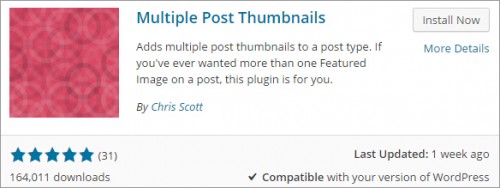
Install Multiple Post Thumbnail in your website
Click on plugin -> add new plugin and search for this plugin in the search box. Once you found it, hit install and then activate it.
Add multiple featured images to a post
Once you have activated your plugin, you need to open your functions.php file and add few lines of code.
if (class_exists(‘MultiPostThumbnails’)) {
new MultiPostThumbnails(
array(
‘label’ => ‘Secondary Thumbnail’,
‘id’ => ‘secondary-thumbnail’,
‘post_type’ => ‘post’
)
);
}
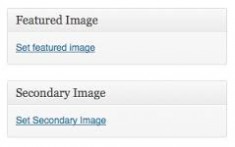
Add these lines of code anywhere in your functions.php file. Just make sure you add them between PHP tags i.e. <? php ?>. These lines of code allow you to add second featured image in your post by enabling an area named “Secondary Thumbnail”.
Display Thumbnails
In order to display thumbnails on your website, you need to add few more lines of code but now in “single.php” file (for single posts). You need to add these lines of code to enable your thumbnails to show on your website.
<?php
if (class_exists(‘MultiPostThumbnails’)) :
MultiPostThumbnails::the_post_thumbnail ( get_post_type(), ‘secondary-thumbnail’ );
endif;
?>
You can add as many featured images you want merely by repeating the above process.
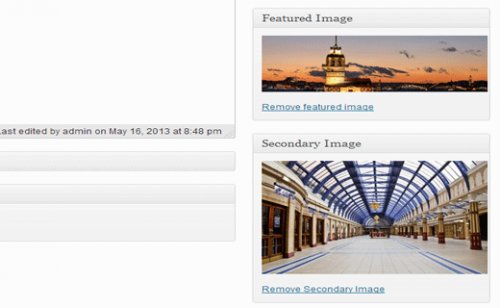
Customizing new thumbnail size
You can also customize the size of new thumbnail by adding these lines of code
<?php
if (class_exists(‘MultiPostThumbnails’)) :
MultiPostThumbnails::the_post_thumbnail(get_post_type(), ‘secondary-image’, NULL, ‘secondary-featured-thumbnail’);
endif;
?>
Multiple Thumbnails is very useful and most user-friendly option available on the internet. However, there are various other alternatives such as Multi Image Metabox, Post Thumbnail Editor, AJAX Thumbnail, Auto Post Thumbnail etc.
Author Bio:
Emma Watson is a productive author, who brings to the table a quantum of information around web improvement administrations. She works for Wordsuccor- PSD to Responsive WordPress Conversion Company which conveys most complete web applications and answers for diverse industry verticals. If you want best wordpress development services then get in touch with her at Facebook, Twitter, Linkedin and Google+
Work out what your hardware can actually run
Free calculators and directories, sized from real model weights — before you download gigabytes or order a card:
