
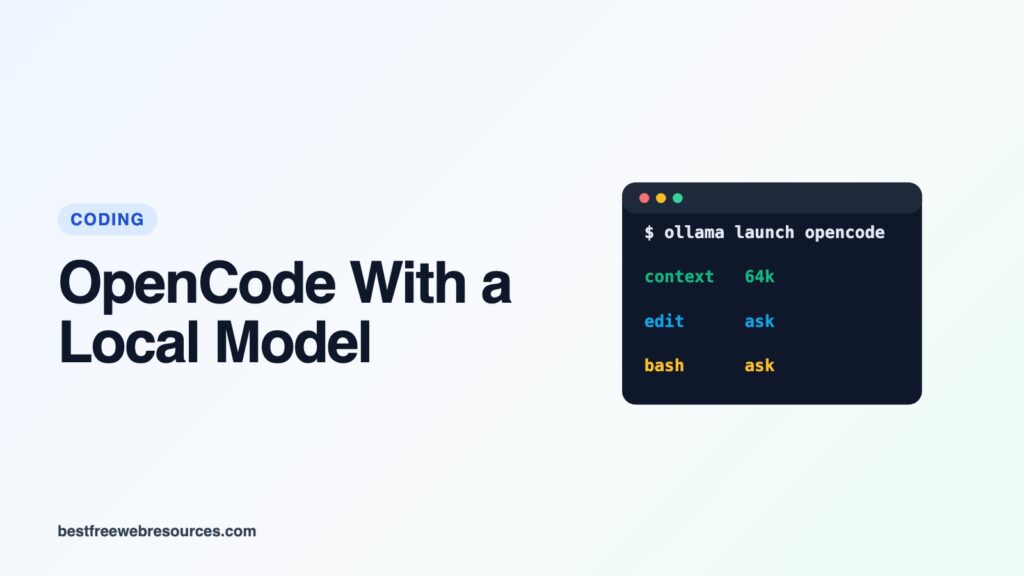
OpenCode is the open-source coding agent that has taken off this year: about 214,000 stars on GitHub, MIT-licensed, and a new release most weeks. It runs in your terminal, reads your project, edits files and runs commands. By default it talks to cloud models, but it can just as easily use a model running on your own machine through Ollama, LM Studio or llama.cpp.
Getting that to work well comes down to three things the setup guides tend to skip: the context length, the model, and what the agent is allowed to do without asking. The same three decide whether Hermes Agent works on a local model. This guide covers all three, with memory figures computed from the same data as our VRAM calculator. Nothing here is a first-hand benchmark; the figures are calculations and the quotes come from OpenCode’s and Ollama’s documentation.
Quick answer
- Fastest setup: install Ollama and OpenCode, then run
ollama launch opencode. Ollama writes the provider settings for you. - Context length is the setting that breaks it. Ollama’s documentation says “OpenCode requires a context length of 64k or higher”, but Ollama itself defaults to 4K on graphics cards with less than 24GB of memory.
- Memory: at 64K of context and 4-bit weights, Gemma 4 12B needs about 10.3GB, gpt-oss-20b about 17.1GB and Qwen3.8 27B about 22.5GB.
- Permissions: OpenCode lets the agent edit files and run shell commands without asking unless you configure it otherwise. With a local model, set
bashandedittoask.
What OpenCode is
OpenCode (anomalyco/opencode on GitHub, formerly under sst/opencode) describes itself as “The open source coding agent”. As of 16 October 2026 the repository has about 214,000 stars, and the latest release is v1.19.2, published that day. It is an agent rather than an autocomplete: you describe a task, and it plans, reads files, makes edits and runs commands in your working directory.
It is one of several open-source agents that work with local models; our DeepSeek Harness guide covers another. Our guide to AI pair programming tools that are still maintained covers Cline, Continue and goose, and found that Aider, once the default recommendation, has stopped shipping.
Step 1: install OpenCode
The documented install routes are a shell script, npm and the usual package managers:
curl -fsSL https://opencode.ai/install | bash
# or
npm install -g opencode-ai
# macOS, from OpenCode's own tap
brew install anomalyco/tap/opencode
On Windows the docs list Chocolatey (choco install opencode) and Scoop (scoop install opencode), as well as npm. OpenCode’s docs recommend their own Homebrew tap over the main opencode formula, which they say is updated less often.
Step 2: connect a local model
Ollama (the shortest route)
Ollama has a built-in integration. With Ollama installed and a model pulled, one command starts OpenCode configured for it:
ollama pull qwen3.8:27b
ollama launch opencode
According to Ollama’s integration page, ollama launch opencode starts OpenCode with an inline configuration for the model you pick and “does not overwrite” your existing ~/.config/opencode/opencode.json. To write the configuration without starting a session, use ollama launch opencode --config.
If you prefer to configure it yourself, add Ollama as a provider in opencode.json. OpenCode treats it as an OpenAI-compatible endpoint:
{
  "$schema": "https://opencode.ai/config.json",
  "provider": {
    "ollama": {
      "npm": "@ai-sdk/openai-compatible",
      "name": "Ollama (local)",
      "options": { "baseURL": "http://localhost:11434/v1" },
      "models": {
        "qwen3.8:27b": { "name": "Qwen3.8 27B (local)" }
      }
    }
  }
}
LM Studio
Start LM Studio’s local server, then point OpenCode at it. The pattern is the same, with LM Studio’s default port:
"lmstudio": {
  "npm": "@ai-sdk/openai-compatible",
  "name": "LM Studio (local)",
  "options": { "baseURL": "http://127.0.0.1:1234/v1" },
  "models": { "your-model-id": { "name": "My local model" } }
}
The model key must match the identifier LM Studio’s server reports for the loaded model.
llama.cpp
Run llama-server and add it as a provider on port 8080. OpenCode’s own example also sets the context and output limits, which is worth copying, because it tells OpenCode how much room it has:
"llama.cpp": {
  "npm": "@ai-sdk/openai-compatible",
  "name": "llama-server (local)",
  "options": { "baseURL": "http://127.0.0.1:8080/v1" },
  "models": {
    "qwen3-coder:a3b": {
      "name": "Qwen3-Coder 30B-A3B (local)",
      "limit": { "context": 128000, "output": 65536 }
    }
  }
}
Start llama-server with a matching context size, for example -c 65536. Setting the limit in OpenCode higher than the server actually allows only moves the failure later.
Step 3: fix the context length
This is where most local setups fail, and the two projects’ own documents disagree on the number.
OpenCode’s provider page gives a mild tip: if tool calls are not working, raise num_ctx in Ollama, and “Start around 16k – 32k”. Ollama’s integration page for OpenCode is firmer: “OpenCode requires a context length of 64k or higher.” Its context-length page says the same for agents in general: “Tasks which require large context like web search, agents, and coding tools should be set to at least 64000 tokens.”
Meanwhile Ollama picks a default from your graphics card’s memory: 4K of context below 24GB, 32K from 24 to 48GB, and 256K at 48GB and above. On most consumer cards, then, an out-of-the-box Ollama gives OpenCode a sixteenth of what Ollama says it needs. An agent’s system prompt, tool definitions and the files it reads fill 4K almost immediately, and the usual symptom is tool calls that silently fail or a model that seems to forget the task.
Raise it in the Ollama app’s settings slider, or when starting the server:
OLLAMA_CONTEXT_LENGTH=65536 ollama serveWe would follow Ollama’s 64K figure rather than OpenCode’s 16-32K tip. It costs memory, which the next section puts numbers on.
Which model, and how much memory it needs
The table below uses the formula in our VRAM calculator: 4-bit (Q4_K_M) weights, plus the KV cache at FP16, plus 1.8GB of engine overhead. The KV cache depends on each model’s attention design, which is why models of similar size scale so differently with context. These are estimates, generated by the data script for this post, not measurements.
| Model | Weights (Q4_K_M) | Max context | Total at 32K | Total at 64K |
|---|---|---|---|---|
| Qwen3 8B | 4.9 GB | 40K | 11.2 GB | cannot reach 64K |
| Gemma 4 12B | 7.2 GB | 256K | 9.8 GB | 10.3 GB |
| gpt-oss-20b | 13.8 GB | 128K | 16.4 GB | 17.1 GB |
| Codestral 22B | 13.5 GB | 32K | 22.3 GB | cannot reach 64K |
| Gemma 4 26B-A4B | 15.9 GB | 256K | 18.5 GB | 19.2 GB |
| Qwen3.8 27B | 16.7 GB | 256K | 20.5 GB | 22.5 GB |
| Qwen3-Coder 30B-A3B | 18.3 GB | 256K | 23.1 GB | 26.1 GB |
| Qwen3.6 35B-A3B | 21.6 GB | 256K | 24.0 GB | 24.7 GB |
Corrected 18 October 2026: the two Gemma 4 rows were recalculated. Gemma 4’s global-attention layers use fewer, wider key-value heads than its other layers, which our calculator had not modelled, so it overstated their context memory.
Three things stand out:
- Two familiar coding picks cannot meet Ollama’s 64K recommendation at all. Qwen3 8B’s native context is 40K and Codestral 22B’s is 32K. They still work for small tasks, but not at the context Ollama recommends for OpenCode.
- Attention design matters more than size. Going from 32K to 64K adds 3GB to Qwen3-Coder 30B-A3B, which keeps a full KV cache on all 48 layers, but only 0.7GB to Qwen3.6 35B-A3B, whose layers are mostly linear attention. Our guide to context windows and VRAM explains the arithmetic.
- Quantizing the KV cache halves its cost. At 8-bit, Qwen3-Coder 30B-A3B’s 64K cache drops from 6.0GB to 3.0GB, bringing its total to about 23.1GB, just inside a 24GB card. In Ollama, set
OLLAMA_KV_CACHE_TYPE=q8_0; it needs Flash Attention, which Ollama now enables automatically where the hardware supports it.
A practical reading by graphics card:
- 12-16GB: Gemma 4 12B at 64K (about 10.3GB) fits a 12GB card; our Gemma 4 12B vs Qwen3.5 9B comparison covers this size class. gpt-oss-20b does not: its weights alone are 13.8GB, and even at 32K it comes to about 16.4GB, so treat it as a 24GB-card model.
- 24GB: Qwen3.8 27B at 64K (about 22.5GB), or Gemma 4 26B-A4B (about 19.2GB) if you want a faster mixture-of-experts model.
- Larger Macs and 32GB+ cards: Qwen3.6 35B-A3B or Qwen3-Coder 30B-A3B with room for longer contexts. Our list of the best local LLMs for coding compares them on licence and published benchmark scores.
Whatever you pick, the model has to support tool calling, because OpenCode reads, edits and runs commands through tool calls. On Ollama, check that the model’s library page carries the tools label. Qwen3.8, Qwen3-Coder, gpt-oss and Gemma 4 all do.
Step 4: decide what the agent may do
This matters more with a local model than with a frontier cloud model, because smaller models misread instructions more often.
OpenCode’s permissions page is direct about it: “If you don’t specify anything, OpenCode starts from permissive defaults”. Most actions, including editing files and running shell commands, default to allow. Only touching paths outside the project and repeating the same tool call three times default to ask, and reading .env files is denied by default.
For a local model, a safer starting point is to approve edits and commands yourself:
{
  "$schema": "https://opencode.ai/config.json",
  "permission": {
    "edit": "ask",
    "bash": "ask"
  }
}
Each rule can be allow, ask or deny. Avoid the --auto flag, which approves every request that is not explicitly denied, until you trust the model on your codebase. Running it inside a Git repository with a clean working tree means any bad edit is one git checkout away.
Keeping it fully local
Pointing OpenCode at Ollama keeps your prompts and code on your machine, but two defaults are worth knowing about:
- Other providers stay available. OpenCode loads providers it finds credentials for. To make sure nothing goes to a cloud model by accident, list only your local provider with
"enabled_providers": ["ollama"]. - The small model. OpenCode uses a second model for light jobs such as titles. Its docs say: “By default, OpenCode tries to use a cheaper model if one is available from your provider, otherwise it falls back to your main model.” With only a local provider enabled, that stays local; you can also set
small_modelto a small local model to save time. - Updates. “OpenCode will automatically download any new updates when it starts up.” Set
"autoupdate": "notify"orfalseif you want to control that, for example on an offline machine.
A combined local-only configuration looks like this:
{
  "$schema": "https://opencode.ai/config.json",
  "enabled_providers": ["ollama"],
  "model": "ollama/qwen3.8:27b",
  "autoupdate": "notify",
  "permission": { "edit": "ask", "bash": "ask" },
  "provider": {
    "ollama": {
      "npm": "@ai-sdk/openai-compatible",
      "name": "Ollama (local)",
      "options": { "baseURL": "http://localhost:11434/v1" },
      "models": { "qwen3.8:27b": { "name": "Qwen3.8 27B (local)" } }
    }
  }
}
If Ollama runs on another machine on your network, change the base URL, and read our guide to running Ollama as a server first: Ollama’s documentation describes no built-in authentication, so it should not be reachable from the open internet. If you put a gateway such as LiteLLM in front of several backends, read our LiteLLM guide for the defaults to change first.
FAQ
Is OpenCode free?
Yes. It is MIT-licensed open source. Cloud model providers charge for their APIs, but a local model through Ollama, LM Studio or llama.cpp costs nothing beyond your hardware.
Why does OpenCode ignore my files or fail to call tools with Ollama?
Almost always the context length. Ollama defaults to 4K on cards with less than 24GB of memory, and an agent’s instructions alone can exceed that. Set OLLAMA_CONTEXT_LENGTH=65536 or use the app’s slider, and check that the model supports tools.
Can I run OpenCode on an 8GB graphics card?
Only with a small model and a short context, which is where agents work worst. At 64K of context even Gemma 4 12B needs about 10GB in our calculation. On 8GB, a cloud model or a smaller task scope will give better results.
OpenCode or Claude Code?
Claude Code is Anthropic’s own agent, built around its models, though Ollama’s integrations page lists it too. OpenCode is open source and provider-neutral by design, which is the main reason to choose it if running locally is the point. If you would rather use Claude Code, our Claude Code with Ollama guide covers its setup.
Related guides and tools
- How to run Qwen3.8 27B locally
- LLM context windows and what they cost in VRAM
- VRAM calculator, with context length and KV-cache precision settings
- Ollama models and VRAM and llama.cpp hubs
- LM Studio Bionic
- Cline with a local model
- Pi coding agent with a local model
Sources
- OpenCode on GitHub: repository and releases, read 16 October 2026
- OpenCode docs: providers (Ollama, LM Studio, llama.cpp)
- OpenCode docs: permissions
- OpenCode docs: config (small_model, autoupdate, enabled_providers)
- Ollama docs: OpenCode integration
- Ollama docs: context length
- Memory figures: BFWR’s VRAM calculator formula and model data (Q4_K_M weights, FP16 KV cache, 1.8GB overhead)
Updated 16 October 2026. OpenCode and Ollama documentation and repository data were read on that date. Memory figures are calculated estimates, not measurements.
Work out what your hardware can actually run
Free calculators and directories, sized from real model weights — before you download gigabytes or order a card:
