
When switching to a new Samsung phone, we usually need to transfer data from Samsung to Samsung, especially the Samsung contact list. However, it is different from the media files that contact files are not stored on your phone SD card, so you can’t directly view or transfer Samsung contacts on computer. Type the contacts on your new Samsung phone one by one? Of course not. You’d better find out an effective method to transfer contacts from Samsung to Samsung to make things easier.
So is there any practical solutions on contacts transfer from Samsung to Samsung? Don’t worry. Ways are more than troubles. The following will introduce 3 methods on how to transfer contacts from Samsung to Samsung. You can get the tips easily here.
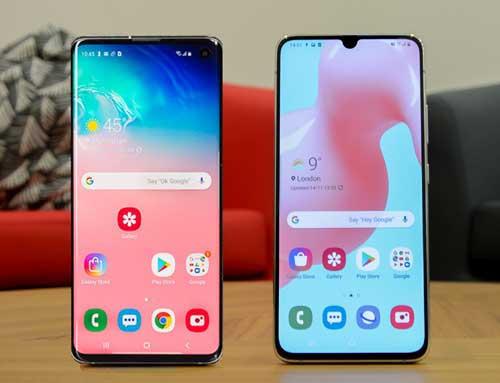
Way-1: Coolmuster Mobile Transfer – Transfer Contacts from Samsung to Samsung in 1 Click
When you bought a new Samsung phone, you often transfer the contacts and other important data from the old Samsung phone to the new one at first. If you want a professional contacts transfer application, Coolmuster Mobile Transfer will match all your expectations.
This Samsung Contact Transfer – Coolmuster Mobile Transfer can transfer millions of contacts from Samsung to Samsung in 1 click. And you don’t take too much time on waiting during the transferring process. More and more people choose the Samsung Contact Transfer because of its profession and the best services. You will get help anytime when you have questions about the app.
Major features of this Samsung Contact Transfer:
– Transfer contacts from Samsung to Samsung in 1 click.
– Transfer text messages, call logs, photos, music, documents, videos and apps quickly.
– Before transferring, you can choose to clear data on the Samsung phone if you want.
– Not only support to transfer data from Samsung to Samsung, but also support to transfer from Samsung to other Android phones, from Samsung to iPhone and vice versa, from iPhone to iPhone.
– Widely compatible with most of Samsung phones, other brands of Android phones, iPhone, iPad, iPod, such as Samsung Galaxy S10/S9/S8/S7/S6, Galaxy Note 10/Note 9/Note 8/Note 7/Note 6, Samsung Galaxy J3/J3 Pro, Samsung Galaxy A9/A8/A7/A5, iPhone 11 Pro Max/11 Pro/11/XS Max/XS, HTC, Xiaomi, HTC, LG and etc.
Step 1: Please go to download the Samsung Contact Transfer on your computer. Then run the program.
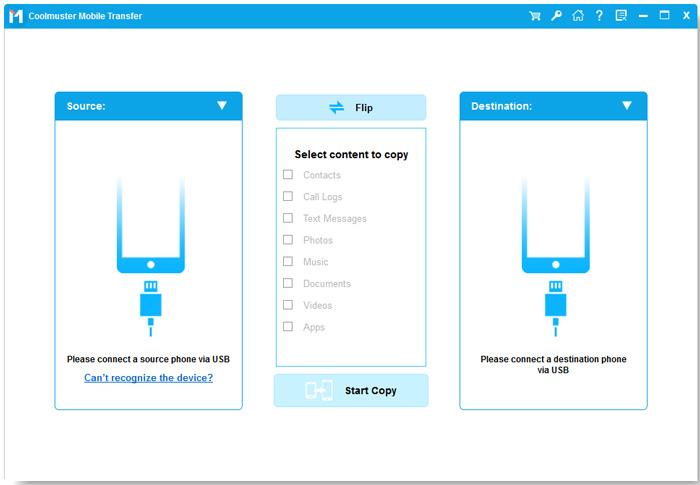
Step 2: Connect your Samsung phones to the PC with two USB cables. And enable USB debugging on both devices.
Step 3: After a quick detection, you will see the Samsung phones on the on the interface as below. Please choose the “Contacts” category on the source device. Click the “Start Copy” and your contacts will be transferred from the old Samsung to the new one.

(Tips: If needed, you can tap on the “Flip” icon to change the places of your source and destination device.)
Way-2: How to Transfer Contacts from Samsung to Samsung with Samsung Smart Switch Mobile
Samsung Smart Switch Mobile is an official app to transfer contacts, calendars, S Memo, messages, pictures, videos and other data from Samsung to Samsung. You can achieve the contacts transfer wirelessly within 50 centimeters. So you needn’t use any USB cables to as long as Samsung devices are in the range.
Step 1: In general, Samsung Smart Switch Mobile is built-in software on the Samsung phone. Or you can download and install Samsung Smart Switch Mobile from the official website and Google Play.
Step 2: Place your Samsung phones together within 50 centimeters and run the program directly.’
Step 3: Tap on the “Connect” to make a connection with two Samsung phones.
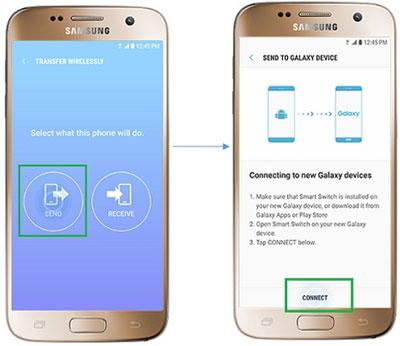
Step 4: On the sending Samsung phone, tick off the “Contacts” option and tap on the “Transfer” button.
Step 5: On the receiving Samsung phone, click the “Receive” on the screen. The contacts will be saved on this Samsung device.

Way-3: How to Transfer Contacts from Samsung to Samsung with Bluetooth
Bluetooth is another effective way to transfer contacts from Samsung to Samsung, although the transfer will be slower than the professional app. If you don’t like to download any apps on the Samsung phones extremely, Bluetooth is your best choice.
Step 1: Open Bluetooth on two Samsung phones. Swipe down the phones and you will see the Bluetooth. Hit on it to turn on.
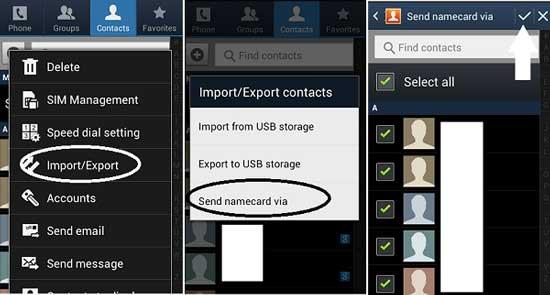
Step 2: Go to the Contacts app on the sending phone. Click the menu and choose the “Import/Export” on the pop-up page. Tap on the “Send namecard via”.
Step 3: You can click the “Select all” to tick off all the contacts. If not, you can select the contacts on the screen.
Step 4: After selecting, click the “OK” icon and choose the “Bluetooth”. Then select your receiving Samsung phone.
Step 5: On the receiving Samsung phone, click the “Accept” on the screen. Your transferring contacts will be sent from the old Samsung phone to this new Samsung phone as a vCard file.
Conclusion
In this article, we have shared 3 valid methods on how to transfer contacts from Samsung to Samsung. You can select one of the above methods optionally. But if you want to transfer all the contacts and other data in 1 click, this Samsung Contact Transfer – Coolmuster Mobile Transfer is the most efficient tool which is recommended by many users. Give it a chance and you will get the best contact transfer from Samsung to Samsung.
Work out what your hardware can actually run
Free calculators and directories, sized from real model weights — before you download gigabytes or order a card:
