
Twenty-two miles off the coast of Southern California, Catalina island is the new name for Apple’s newest major system upgrade – macOS 10.15. If you have upgraded your Mac desktop or laptop to macOS 10.15 and want to undelete files on Mac, this post has a tutorial and introduces a suitable data recovery tool for macOS 10.15.
How to undeleted files from emptied Trash?
There is no “Delete” option on Mac but “Move to Trash”, so all deleted files will be temporarily held in Trash. If you want to get a file back, just right-click the file in the Trash and choose Put back. Then the file will be moved to its original path. The files in Trash will still take up Mac’s storage space, so many people will choose to empty the Trash on a regular basis. In this scenario, data recovery software can lend you a hand. If you have Time Machine or iCloud backups, or you want to know how to undeleted files without software on Mac, check this comprehensive guide.
To undelete files from emptied Trash in macOS 10.15 with data recovery software, follow the guide below using iBoysoft Data Recovery for Mac. The guide would be different based on the software you use.
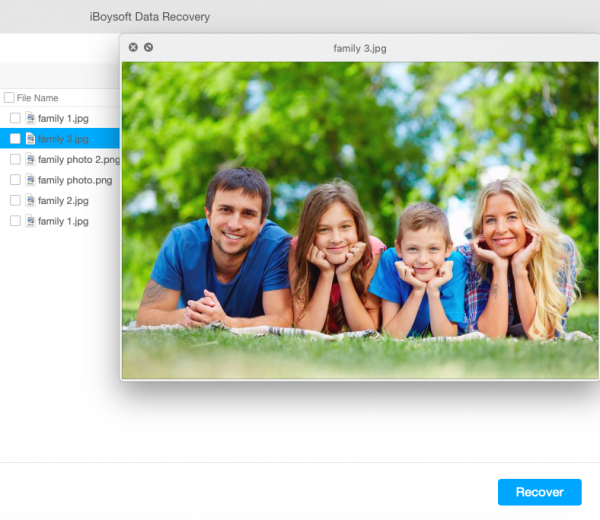
- Free download, install and launch the software on Mac. Remember to enable the software to have Full Disk Access in macOS 10.15.
- Connect the external storage to the Mac if you want to undelete files from it.
- Choose the drive or the volume where picture, documents, videos or other files were deleted.
- Untick Deep scan if it is ticked automatically and click Scan.
- Use the file filters such as Path, Time, and Type and search box to fast locate the files you want to get back. If you don’t see the deleted files, go back to the home window and start to deep scan the disk/volume.
- Preview the files to see if it is recoverable and which version is correct when the software finds multiple files with the same name.
- Tick the box before the wanted files and click Recover.
- Select a disk or volume which is different from the one where files were deleted.
- Check the recovered files to make sure you have restored all wanted files and then exit the software.
Features to consider for macOS Catalina data recovery software
There are few completely free data recovery apps in the market. Besides, free data recovery apps are risky to use. If you finally have to pay for it, why not choose one that is most cost-effective? After considering most common data loss situations, five features we believe it is very important in choosing a data recovery app.
- Full compatibility. Some software, especially open-resource software, are not fully compatible with macOS 10.15 yet. Using incompatible software will cause software crash or even damage the storage device.
- APFS/encrypted APFS data recovery capability. Since APFS is the default file system for macOS 10.15, the software needs to be able to support APFS and encrypted APFS file system, especially when you need to restore data from Mac computer itself.
- Unbootable Mac data recovery capability. Macs are reliable computers but sometimes it can fail to boot up. In that situation, you will need a data recovery software that can handle data restoring from the unbootable Mac.
- Simple user interface. Simple and intuitive wizard will be very helpful for users who has no experience of using this type of software. It will relieve the stress and worries about the loss of important information.
- Technical support. Data recovery is not as simple as you expect. Different data lost patterns could result in different data recovery procedures. Professional technical support can step in when you are having trouble.
Those features are based on our experiences. If you have your own criteria for choosing a data recovery software, it is totally up to you. Some people take other users’ comments or prices into careful consideration.
On the software’s official website and its articles, you can look for much information. It is always recommended that you read the information carefully to find the one that best suits your need with less money.
Work out what your hardware can actually run
Free calculators and directories, sized from real model weights — before you download gigabytes or order a card:
