
• Skip to main content
  • Skip to secondary menu
  • Skip to primary sidebar
  • Skip to footer
  • Home
  • About Best Free Web Resources (BFWR)
  • Privacy Policy
  • Contact
Best Free Web Resources - AI Tools and Engineering Hub

Best Free Web Resources

Local AI Tools & Digital Engineering Resources

⚡ VRAM Calc 💻 Hardware Matrix AI Suite →
  • AI Hardware Matrix
    • Local Model Recommender
    • All AI Tools Hub
    • API Pricing & ROI
  • Local LLM Directory
  • VRAM Calculator
  • Hardware Compare
  • Tech Guides
  • Web Resources
    • Inspiration
    • Photography
    • Business
    • Games
    • SEO
    • Tutorial
      • Coding
      • WordPress
    • Resume/CV
    • Graphics
      • Logo
    • Wallpapers
    • Freebies

Saving WordPress Tutorials for Offline Viewing with the Movavi Screen Capture Studio Review

July 3, 2020 by Rupesh Kumar

Out of all the platforms used for blogging, WordPress has turned into one of the most versatile and flexible options. If you want you could use it as a conventional blog, or if you like you could customize it, tweak it, and create a variety of different websites from it. Learning how to use WordPress will unlock tons of different options – and there are numerous tutorials that will help you to do so on video streaming websites such as YouTube.

Instead of constantly tabbing back and forth between a tutorial of your choosing and the WordPress window that you’re working on however – why not save the tutorial and transfer it to your smartphone or tablet so that you can have it playing and watch it while you work. To do that, all you need to be able to grab video off your screen – and the Movavi Screen Capture Studio should help make that part easy.

WordPress + Movavi Screen Capture Studio
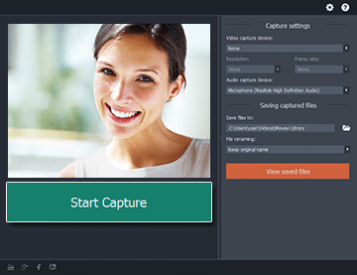
Movavi Screen Capture Studio

To save any WordPress tutorial that you find interesting, just:

  1. Position the capture region to encompass the area where the WordPress tutorial is streaming.
  2. Check that the audio source is set to ‘System Audio’.
  3. Start the recording by clicking ‘REC’ and play the WordPress tutorial at the same time.
  4. When the tutorial is done, stop the recording and save the video in a format of your choosing.

The best part about using the Movavi Screen Capture Studio to do all this is the fact that not only is it so easy and intuitive, but you’ll also have a ton of other options that you can utilize, such as:

  • Trimming unwanted parts of the recording from your video to get rid of them.
  • Enhancing the video quality to improve it and correct issues such as interlaced, pixelated or blurry video.
  • Cutting out the important bits from several different WordPress tutorials and merging them together into a single video.
  • Automatically optimizing the video you save for mobile devices with the help of the hundreds of presets that are available

On top of that with some of its other features you’ll also be able to add background music, voiceovers, customizable text, and much more too.

Go ahead and start saving your favorite WordPress tutorials for offline viewing and you’ll see firsthand just how easy it is to do so with the Movavi Screen Capture Studio.

⚡ Free Developer & Creator Tools

Interactive Local AI & Hardware Benchmarks

Explore our open developer tools before downloading heavy models or ordering hardware:

💻 Hardware Matrix 58+ Laptops & GPUs benchmarked 📚 Models Directory DeepSeek V3, R1, Qwen specs ⚡ VRAM & KV Calculator Custom sandbox up to 256k 💰 API Pricing & ROI Cloud vs local break-even 🍎 Mac VRAM Unlocker Unlock 90% unified memory

Filed Under: Technology, Wordpress Tagged With: Tools, wordpress

About Rupesh Kumar

Rupesh Kumar is a systems architect, full-stack engineer, and the founder of Best Free Web Resources (est. 2010). He oversees BFWR physical hardware testing laboratory, benchmarking consumer GPUs and Apple Silicon for local AI inference. Learn more: Hardware Testing Lab & Editorial Standards → · Follow on X (@bestfreewebres) →

Primary Sidebar

⚡ FREE INTERACTIVE TOOLS

Local AI Hardware & VRAM Matrix

Benchmark your PC or Mac for local AI, calculate VRAM requirements, and compare cloud API costs vs local hardware ROI.

💻 Hardware Matrix (58+ Devices) → 📚 Local LLM Directory (19 Models) → ⚡ VRAM & KV Cache Calculator → 💰 API Pricing & Break-Even → 🍎 Mac VRAM Unlocker (90% Boost) →
🎯 Recommender ⚖️ Comparisons

Search

  • Facebook
  • Instagram
  • RSS
  • Twitter
  • YouTube

Footer

Recent Tech & AI Guides

  • AMD Strix Halo vs Apple M4 Max: The 128GB Unified Memory Local AI Showdown
  • Best Local LLM Runners in 2026: Ollama vs LM Studio vs Jan vs llama.cpp vs vLLM
  • DeepSeek V3 671B vs Llama 3.3 70B & Qwen 2.5 72B: Local Hardware Requirements & MoE Sizing Guide
  • DeepSeek R1 Quantization Guide: Q4_K_M vs Q8_0 vs FP8 (Perplexity & VRAM)
  • NVIDIA RTX 5080 vs RTX 4090 for Local LLMs: Why 16GB VRAM May Break Your AI Workflow

Interactive AI Tools

  • 💻 AI Hardware Matrix (55+ Profiles)
  • ⚡ VRAM & KV Cache Calculator
  • 📚 Local LLM Directory (16 Models)
  • 💰 API Pricing vs Hardware ROI
  • 🎯 Local Model Recommender
  • ⚖️ Hardware Comparison Engine
  • Explore All AI Suites →

Curated Web Resources

  • 🖥️ Technology & Hardware
  • 🚀 Coding & Web Development
  • 🎁 Freebies & Graphic Assets
  • ⚙️ WordPress Tutorials & Tips
  • 📈 SEO & Digital Marketing
  • 💼 Business & Workplaces
  • Connect With Us:
    Twitter · YouTube · Facebook · Instagram · RSS
  • About · Privacy Policy · Contact

Copyright © 2026 · Best Free Web Resources · All Rights Reserved.  |  About · Privacy Policy · Contact · AI Tools Hub