
For the unknowns, NVIDIA Control Panel is a hardware control application developed by NVIDIA.
When installed on the computer, a control panel will automatically come and you can adjust its settings through the interface. The configuration of the hardware can be changed according to the requirement.
Recently graphics adapter have reported the issue that they can’t find the control panel on their computer or NVIDIA control panel missing. This issue was mostly observed during upgradation of Windows OS from the former version or entering the computer from sleep mode.
This is kind of frustrating as we all know but the good news is: “We have the solution now”
Follow the below-mentioned steps to fix it:
Step 1:
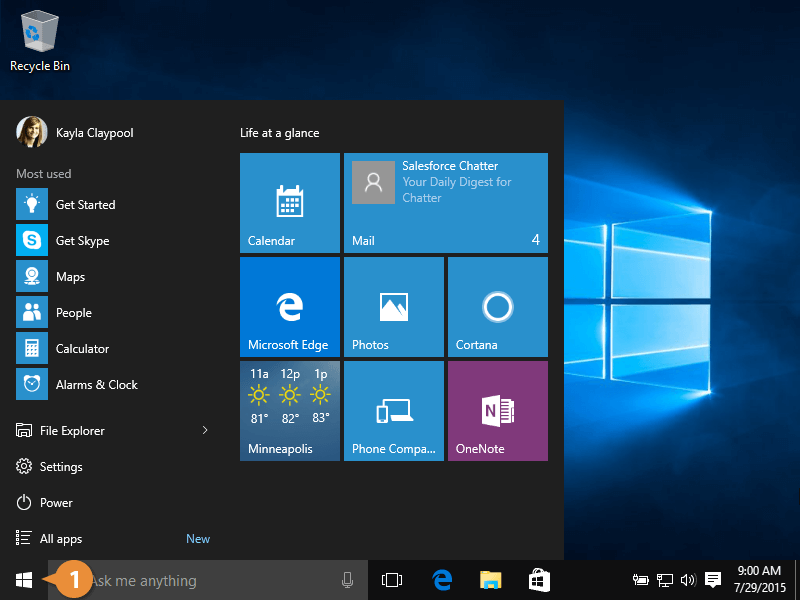
- Boot into the safe mode by pressing Key +I key combination in order to open settings. Click the start menu and select the gear key.
- Click on update and security option, click Restart option available under Advanced startup. This will restart the computer and you will be asked to choose an option.
- Click F4 in order to start your PC.
After that delete Nvidia folder on hard disk and uninstall the driver.
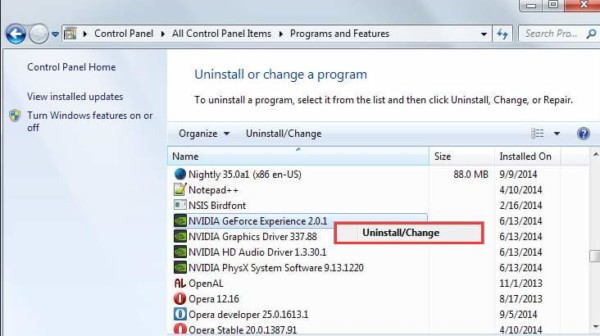
- Navigate to local hard disk. You will see the NVIDIA folder. Right-click and choose delete option.
- Click on Start and access the Run dialog box.
- Click Ok button after typing “devmgmt.msc”. This opens the Device Manager Window.
- Click on Display adapters field. The list of installed adapters will appear. Click on NVIDIA option and uninstall it. This will remove the adapter from the list and uninstall it.
- Click Ok when the prompt appears.
The next step is to reboot to normal mode and download the latest NVIDIA driver available online.
- Now Run the setup file which is downloaded and follow the instructions. Choose the custom installation and check all boxes in the custom option.
- Restart the computer to check if the NVIDIA control panel is back.
Step 2: Restart the Services:
Restarting the services solves many issues related to them. If the service is corrupted restarting almost solves the problem no matter what caused the issue.
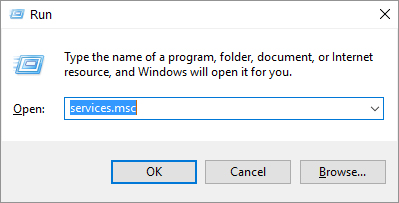
- For the ones using Windows older versions before Windows 10, the easiest way to access the running service is by clicking the Start button and navigating to Run dialog box.
- Type “services.msc” and wait for the lists to open.
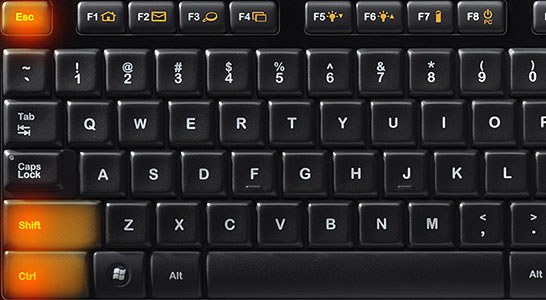
- For Windows 10 and above use Ctrl+Shift+Esc key combination in task manager.
- Navigate to the service tab in taskbar and Open Services visible at the bottom.
After successfully opening the service, follow the below instructions:
- Click on the Name column and locate the service in order to sort the services alphabetically. Repeat the same procedure for the processes which contains the word NVIDIA.
- Right click on the service and click properties.
- Go to Startup type and set it to automatic if it’s not by default. Click the stop button and wait. Click on the start after some time and confirm the dialog boxes.
- Check if the issue is resolved.
Step 3: NVIDIA control panel missing from the Desktop Context Menu
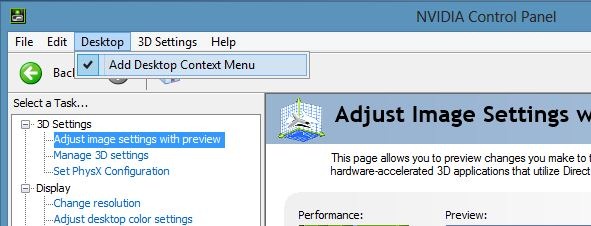
You will not be able to see the control panel on the right click or there may be a situation where the panel is there but NVIDIA control panel missing.
This happens when windows remove the NVIDIA control panel without informing.
This generally happens when you upgrade windows. To add it again to the right-click menu :
- Press the windows logo key and R on your keyboard simultaneously to open the Run dialog.
- Type “Control” and press enter. This leads to opening of Windows control panel.
- In this panel, choose View by Large Icons.
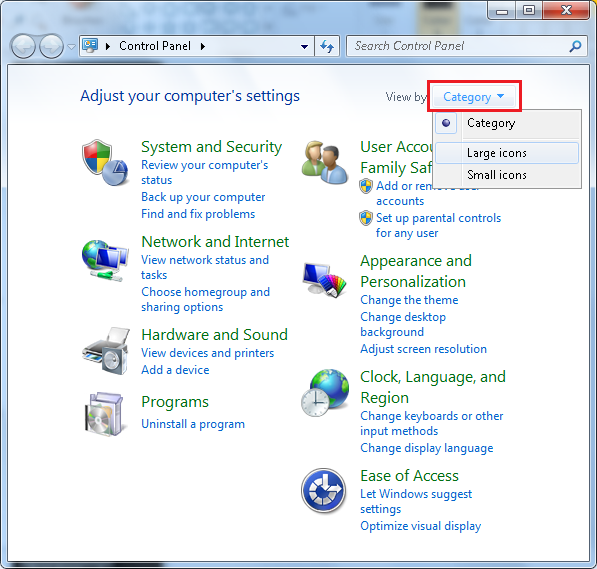
- Select NVIDIA Control Panel.
- In NVIDIA Control Panel, click on the View or Desktop, and then check Add Desktop Context Menu.
- After this, right click on the desktop and check if the NVIDIA control panel appears.
In NVIDIA Control Panel, select View or Desktop, and then verify in Add Desktop Context Menu.
Step 4: The problem in launching the Control Panel:
There are some advanced actions to be performed correctly.
- Navigate to “C:\Program Files\NVIDIA Corporation\Display.NvContainer”, right click on the “NVDisplay.Container.exe” file and select Copy from the context menu.
- Use the Windows Key + R key in combination in order to open the Run dialog box. Type in “shell: startup” in the dialog box and press the Enter button.
- This opens “C:\Users\naoda\AppData\Roaming\Microsoft\Windows\Start Menu\Programs\Startup” folder. Paste there “NVDisplay.Container.exe” as a shortcut in this folder.
- Now, right-click on “NVDisplay.Container.exe” shortcut, navigate to Properties, and go to the Shortcut tab. Here in Shortcut Tab go to Advanced and check the “Run as Administrator” option.
Reassure the changes made and navigate to the Compatibility tab and check “Run This Program as Administrator”.
Click Apply and then OK to see if the problem is solved.
Step 5: The manual process to open the control panel:
If the process fails to open automatically, it means there may be the fault that something regarding the automatic launch is misconfigured. Follow the below steps for force launch.
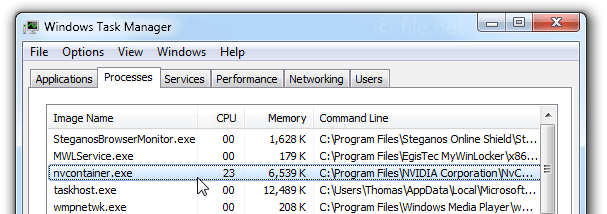
- Use the Ctrl + Shift + Esc key combination in order to open the Task Manager. Click on More details if the window is shrunk and locate the Nvidia Container entry. Right-click and choose the Open File Location option.
- In the folder of Nvidia, go Up one folder until you end up in the Nvidia Corporation Folder.
- Try to look out for the folder named Control Panel Client, open it, and search for the application called nvcplui.exe.
- Right-click and opt for Run as administrator option.
Step 6: Don’t change the speed back and forth:
Stop changing the speed of the processor repeatedly to a greater value and above factory settings. This process is called overclocking. You have to be extremely careful because the entire PC can go down in flames.
Returning back to GPU’s rate depends on which software you used to overclock.
Stop Overclocking the graphics and check if the Control Panel reappears.
If still the issue is not solved, try to replace corrupt and missing files.
For more technical and software regarding errors you can visit technographx website for solving your daily basis technical issue.