
The leading computer manufacturers are constantly trying to improve the security features. They are now offering PCs which are secure enough to prevent any sort of threat. An unauthorized person will face a lot of difficulties in order to break in and access your data.
Though improved security is quite pleasing when you want to prevent your data, sometimes it also becomes a headache. Suppose you have applied a tough alphanumeric password and forgot it. What would you do now, especially if you are using a high-tech Asus laptop? You may certainly take your laptop to the service center, but first try to reset Asus laptop password by yourself. Here are a few methods that you may like to try.
Tips #1 : Unlocking Asus Laptop by using NT Password & Registry Editor
Everybody knows that NT Password & Registry Editor is a free Windows password reset tool ,
It can be a great help to those who have experience , you can get your account and reset the login password for the lock pc / laptop ,to reset the login password for your Asus laptop. You can get it and then follow the given steps.
- Go online and download the NT Password & Registry Editor by using another PC.
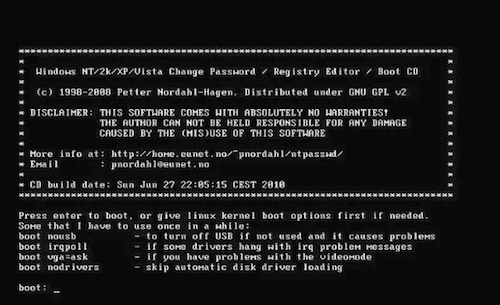
- In order to create a bootable disk on a CD or USB drive you will have to first open that program, and then select choose media option. Now select USB drive or disk and then click Begin Burning. This is how you can create a bootable disk or USB drive.
- Now plug that bootable disk or USB drive to your locked laptop.
- Turn on your laptop and then boot it from bootable disk.
- The NT Password & Registry Editor will get on the screen and offer some instructions that you need to follow in order to crack the password of the targeted account.
- Or, follow the default password reset method to avoid complexities and crack the password of the targeted user account.
Instructions are different for different tool, but you can follow the default method to unlock your Asus laptop.
Tips # 2: Reset Login Password On Asus Laptop with iSeepassword tool
Anyone who’s been to Google knows that the iSeepassword is a professional Windows password reset tool , it allow Windows computer user and Laptop user to reset lost or forgot password .it can help you create a bootable disk so that you can bootable your locked laptop as soon as possible . so , follow these steps to reset Password for Asus laptop.
- Use another computer to download the iSeepassword tool and then install it on the PC.
- Now connect your USB drive to that computer and erase or replace all the data stored on the drive.
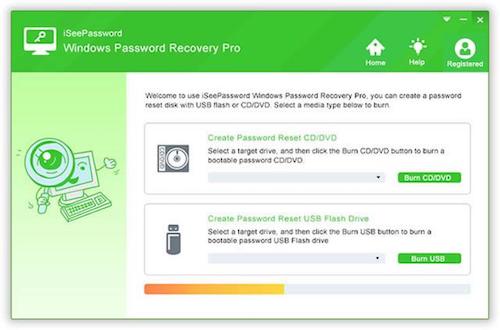
- Now check the downloaded program, click on the USB drive and then click “Begin Burning”. Now the password recovery drive is ready to use.
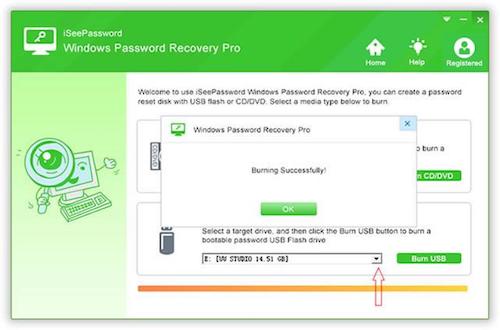
- Insert the USB drive to the locked Asus laptop.
- Restart the laptop and then keep pressing F8 key until the boot BIOS Setting menu opens. Once you get the boot menu on the screen, now click on USB drive and then press Enter.
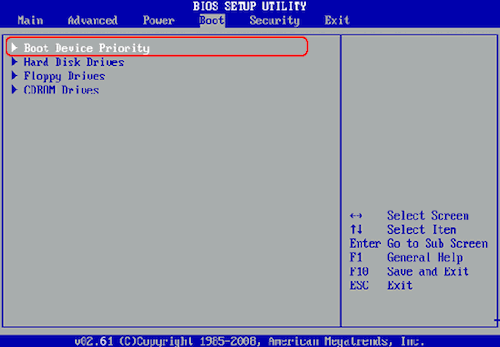
- iSeepassword tools may take a while to boot. You will soon see the user list on your laptop screen.
- Click on the inbuilt Administrator account and then click on “Reset Password” option. The iSeepassword may like to confirm it before processing, so click Yes in order to reset the password.
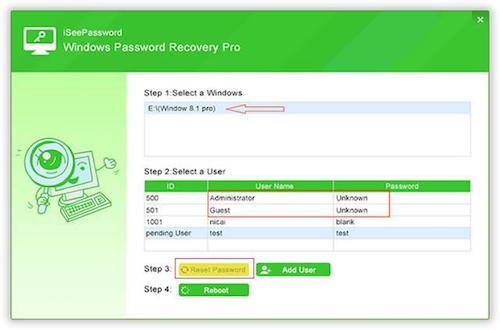
- Now reboot the laptop and eject the USB drive. Your PC will restart and then you will see all the accounts including the Administrator account.
- Login via the Administrator account and reset the password.
If you want to try other free methods , then follow the next method.
Tips # 3: Unlocking The Asus Laptop by Resetting the Factory Settings
If you’re willing to give up the data you keep on your laptop , maybe i think this method will works for you , It will make your computer start all over again, it’s only when you erase all the data stored and the applications on your laptop that you can get into your laptop .
- Turn on your PC and then press Shift on the login page and then restart the PC.
- Your PC will restart and boot. You will get advanced options and then you have to click on Troubleshoot.
- Now click on “Reset your PC”.
- Choose the drive you want to clean. We recommend you to select the drive where the Windows is installed.
- Now click on Reset button to start resetting procedure.
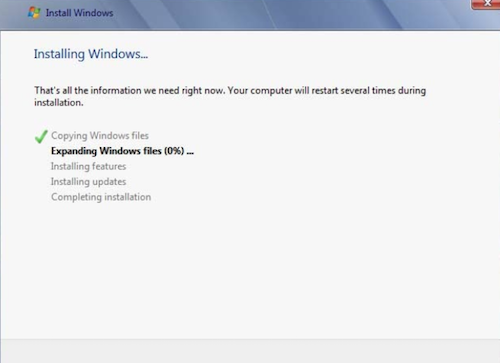
Your laptop will restore the original settings and your account will be unlocked. However, all the data will get removed, so you should not try this method. The 2nd method is the best if you do not want to lose your precious data. at least other data on your computer is safe when you trying to reset the login password on Asus laptop.