
Removing multiple contacts all at once on your iPhone is not an easy task, and if you want to erase each contact individually from your device, then it will take a lot of time. The problem in the iPhone is, it does not contain multi-delete option. The best and quickest way to delete several contacts on your iPad or iPhone is possible when you connect your device to a Mac or to your personal computer. Once you connect your device to your computer, then you can easily delete multiple contacts at once and the deleted files results will appear on your iPhone when your iCloud settings in your iPhone facilitate you to have access to your contacts.
You need to delete the data in your iPhone now and then, if you want to sell your iPhone, then you must make sure that all the contacts in your iPhone deleted. Deleting multiple contacts at a time is not a very easy task this is because, Apple software allows you to delete one single contact at a time, which seems to a frustrating process especially when you need to delete more than 100 contacts or so.
Also read:
Top 10 Best Free Font iPhone Apps
5 Best Apps For Preschoolers
But, the best thing is, there are several ways to erase all the contacts from your iPhone, and here you can find the best ways that can help you deal with this problem. These following methods can help you remove all the contacts at once in all versions of iPhone, iPod, and iPad.
Method-1: Erase all Contacts of your iPhone at once
Many iPhone users make this mistake often by erasing all their personal details and contacts before selling the device. They do not try using the factory restore settings. This is process is followed commonly when the user is handling the iPad or iPhone over to their family member or if they sell the device to another user.
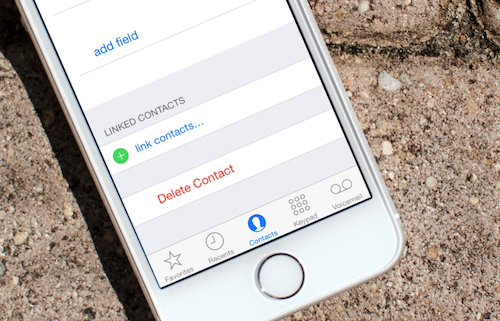
To safeguard your private details and prevent the complications especially when you are sharing the Apple ID with another user. You need to remove all your personal details and contacts from your device and also you need to sign out of the iCloud totally and remove all the data from the iPhone totally by restoring it using the factory settings.
Method-2: Erase Contacts at a time iPhone Using SafeWiper
As i know , SafeWiper for iOS is a powerful and easy-to-use iPhone data eraser that is developed for users who want to remove content from their iPhone safely and securely. The app allows you to export apps, contacts, music, photos, videos, ringtone, eBooks, SMS messages, and more. With SafeWiper for iOS, transfer your data into the PC and simply delete all contacts in your iPhone in just three simple steps.
Step-1: Download eraser App and install it on your computer.
Step-2: Connect your iPhone to the computer using USB flash drive and start this program.
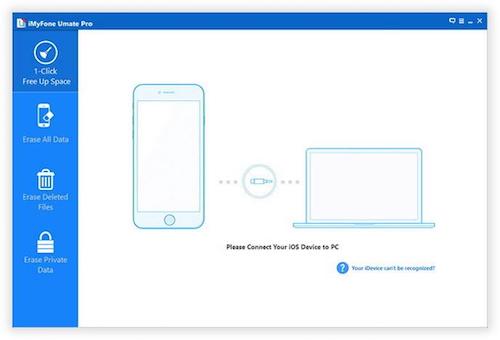
Step-3: Once the iDevice gets connected, you will get the information of your device, then press information option located on the left side of the screen.
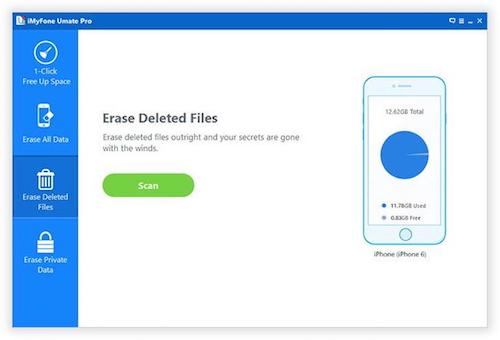
Step-4: You can choose all contacts by pressing the empty box located on the upper-left side and press the delete button to clear all iPhone contacts.
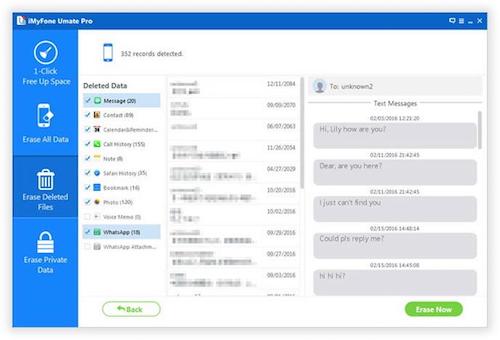
Method-3: Clear all Contacts in your iPhone with iCloud:
If you are planning to pass over your iPhone to your family member and if you want to share you can do that by sharing iTunes and App Store, you can share it by setting up using the Family Sharing feature available in your device that facilitates you to share purchases using different Apple IDs. If you want to remove contacts from your iPhone, then just follow these simple steps to clear all contacts from your iPhone.
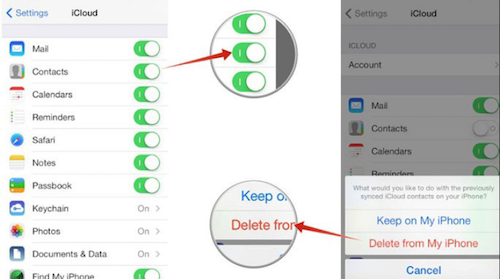
Step-1: Go to the settings on the Home Screen of your iPhone to start the setting app
Step-2: Press iCloud
Step-3: Switch off the Contacts
Step4: Click on the delete option from ‘My iPhone’
Conclusion:
You can delete multiple contacts all at a time from your iPad or iPhone using these methods or you can as well download the contacts app on your Mac. To do this, you need to sign-in to your Mac iCloud that is signed into your iPhone and ensure contacts are checked. Hold on to the command key and select all the contacts that you want to delete. Press delete button to remove all the contacts at once.
However , only with the SafeWiper will you be able to completely erase all your contacts from iPhone , and it ensures that there is no possibility of recovery , So amazing.
So, let’s visit its website for more information.